
Amazon Firestick Setup
01. Get the Downloader App
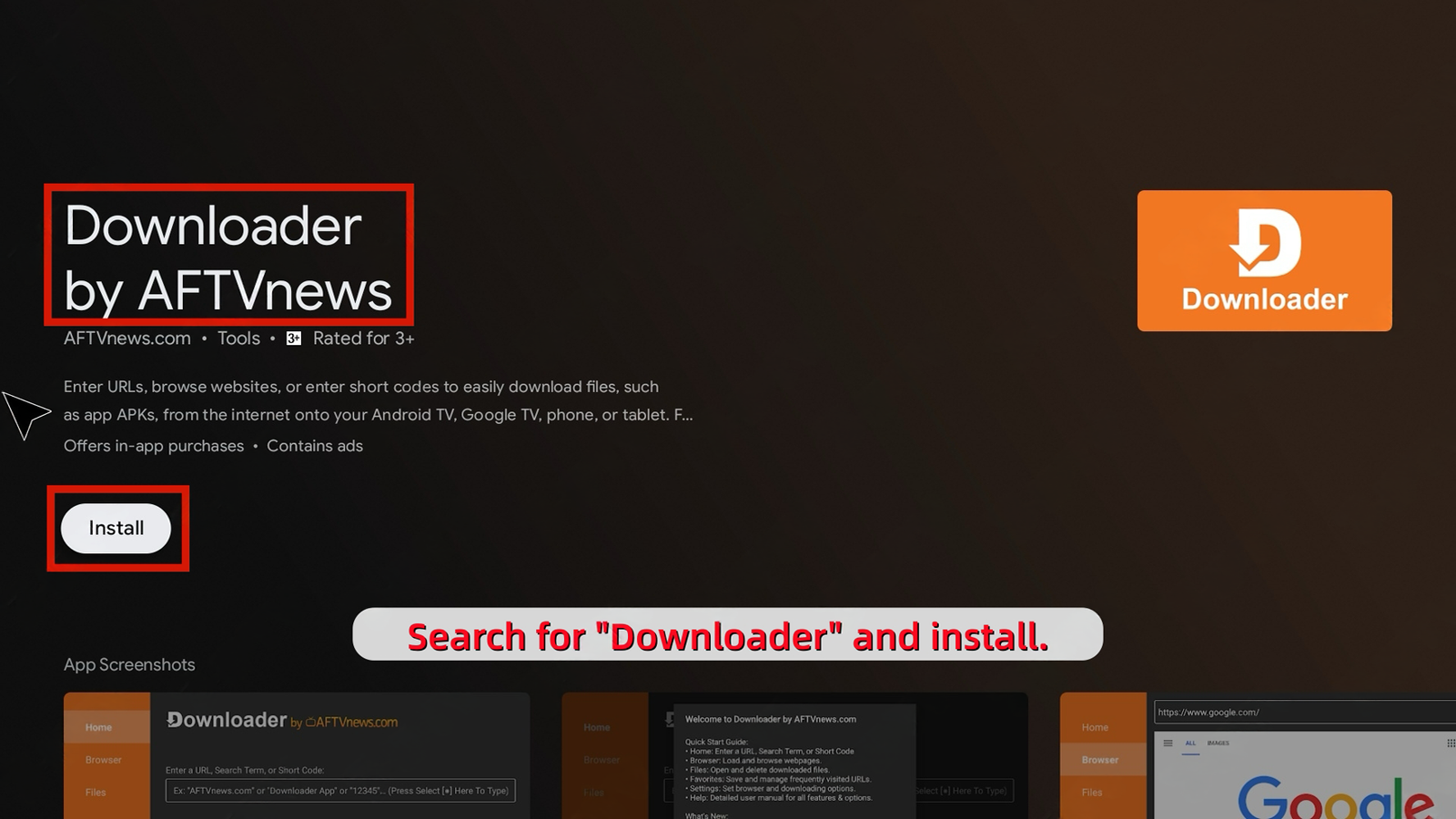
Search for “Downloader” on your Firestick Home Screen and install it.
02. Enable Developer Options (Crucial)
Go to Settings > My Fire TV > Developer Options. Turn ON “Install unknown apps” for Downloader.
03. Enter Download Code
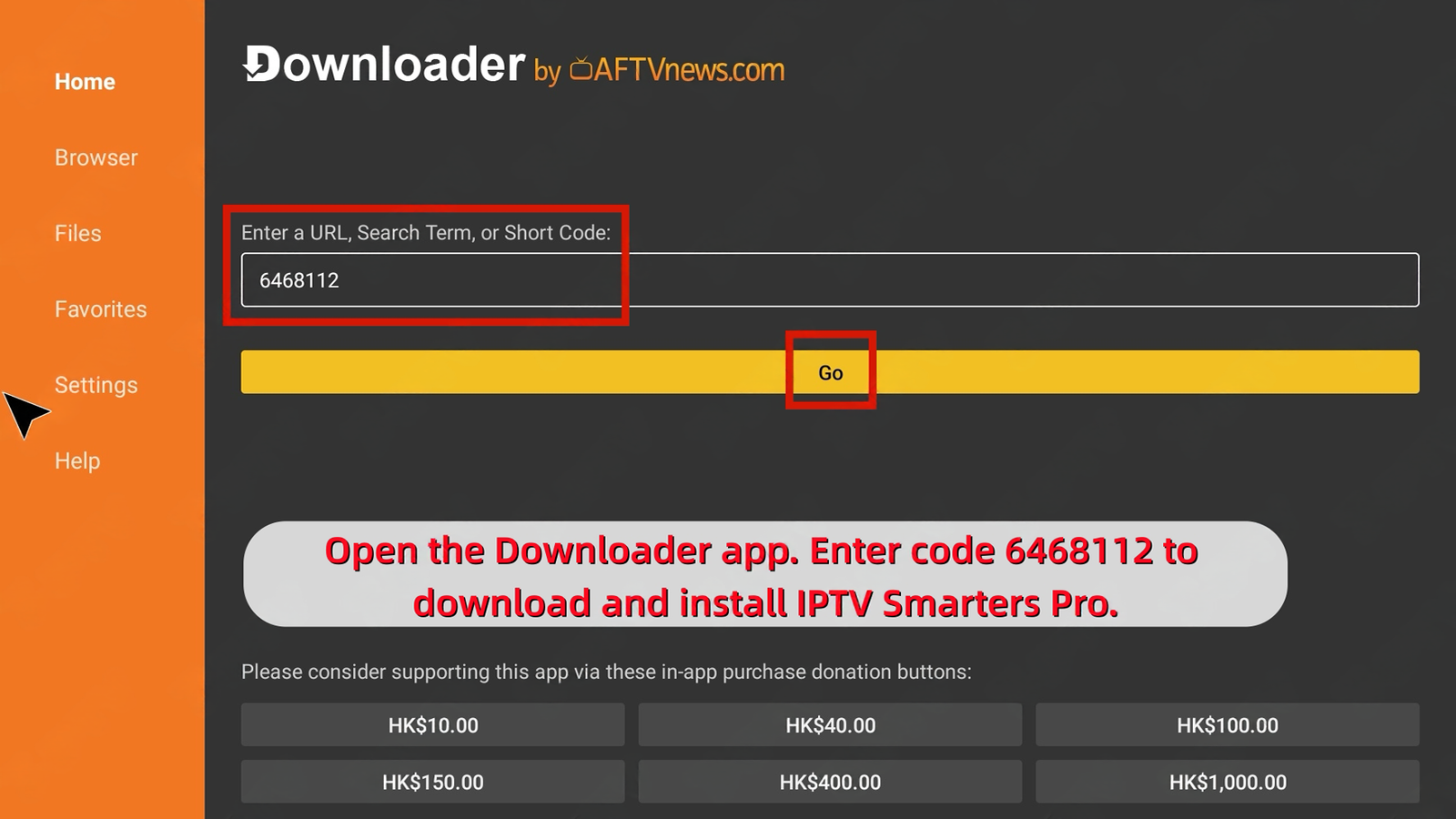
Open Downloader and enter this code: 6468112. Wait for the file (IPTV Smarters Pro) to download and click Install.
04. Login with your Details
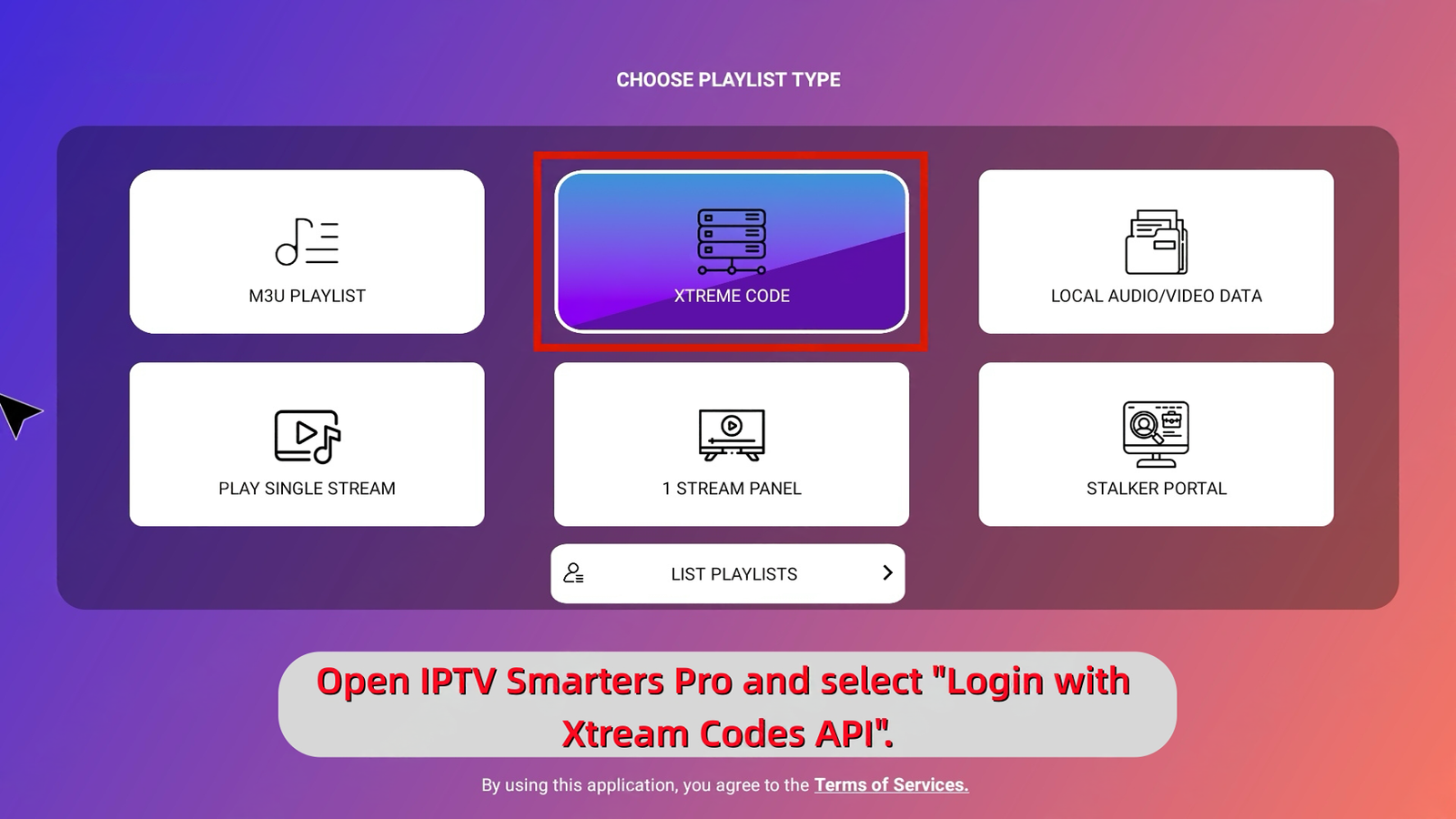
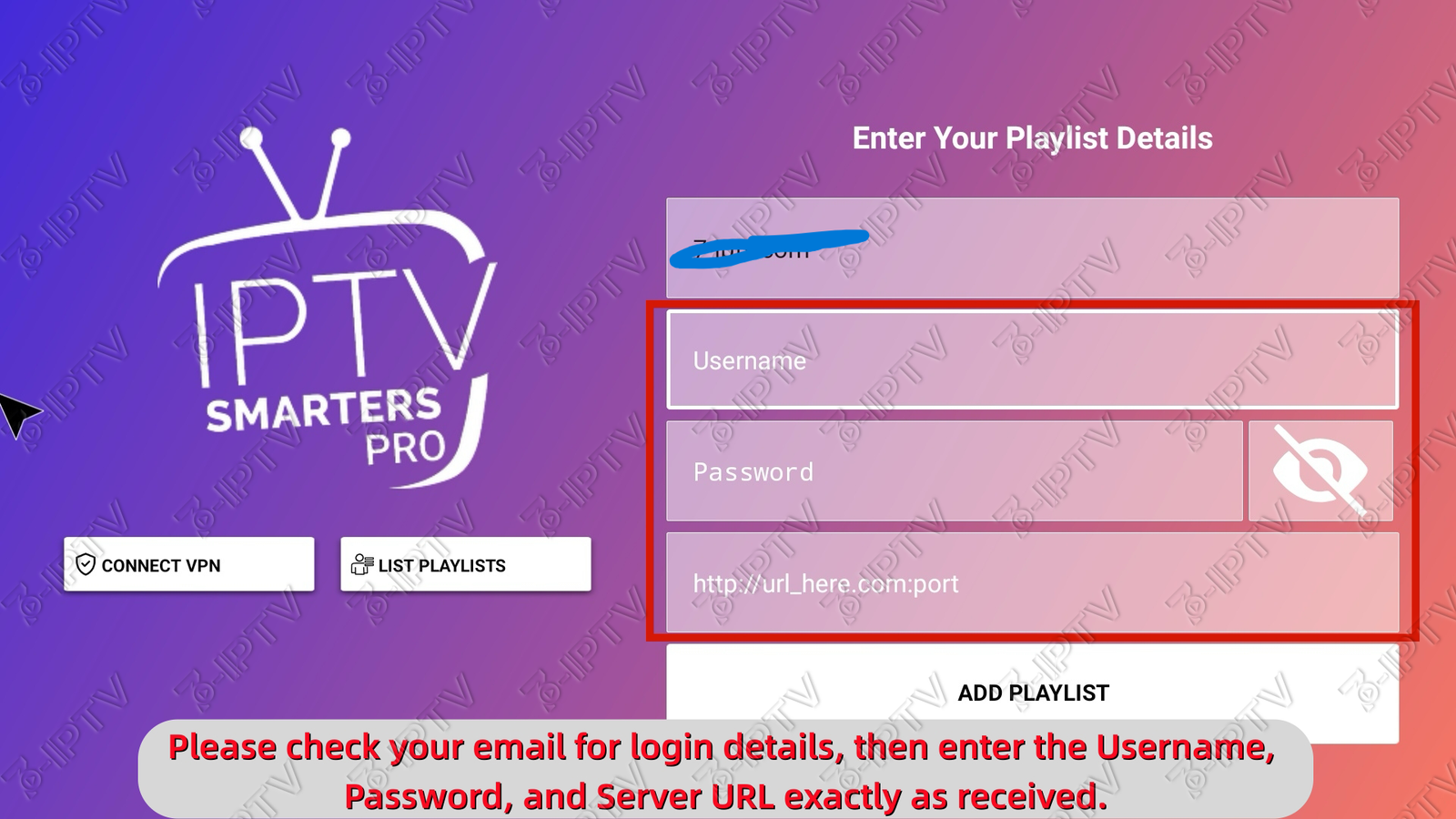
Open the app, select “Login with Xtream Codes API”. Enter the Username, Password, and URL sent to your email.
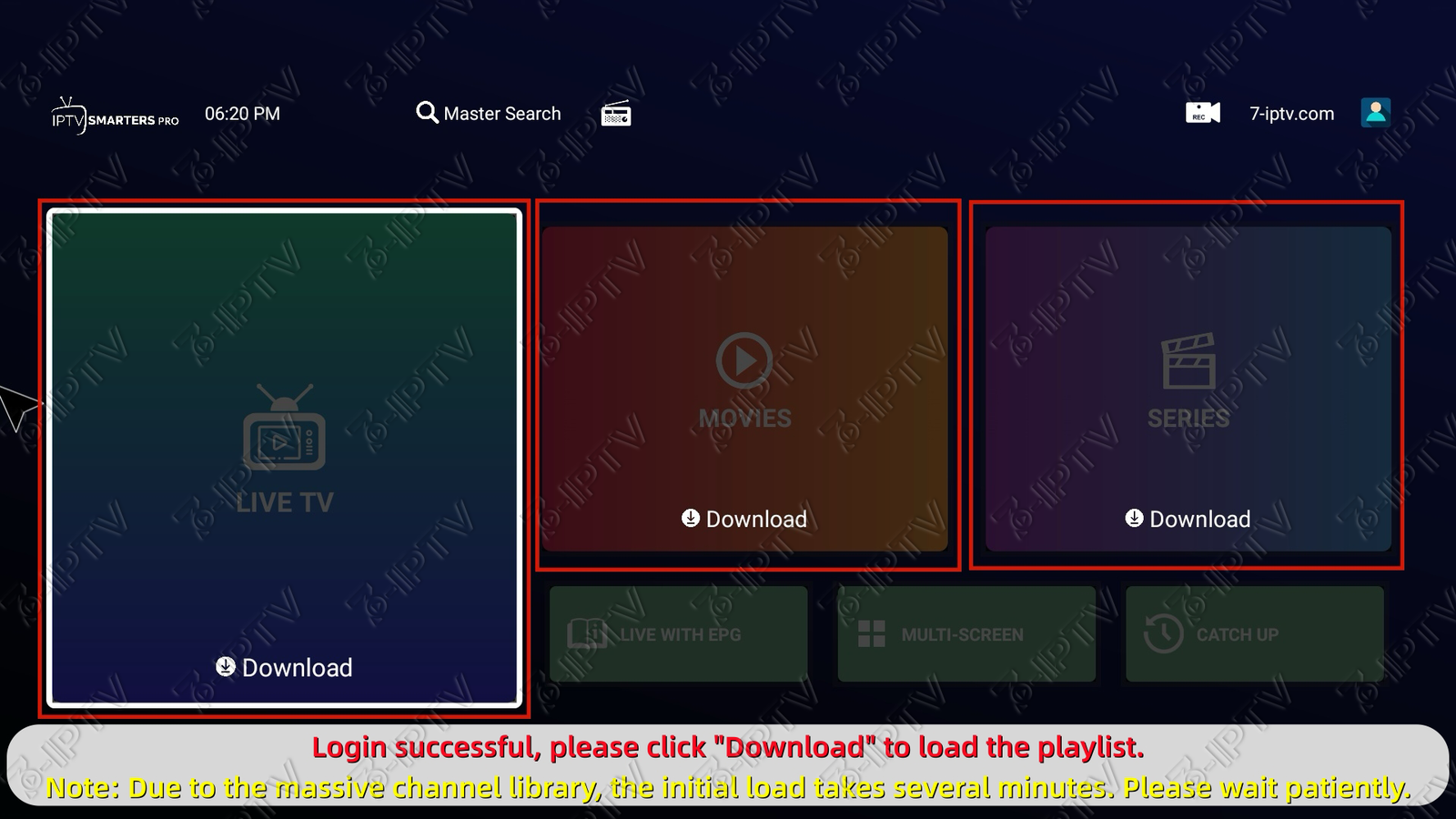
Android TV / Box Setup Guide
Compatible with Nvidia Shield, Xiaomi Mi Box, Chromecast, Onn Box, Sony, TCL, Hisense, and all Android TV devices.
01. Get “Downloader” App
Open Google Play Store on your TV, search for “Downloader” (orange icon), and install it.
02. Enter Code
Open Downloader and enter this code in the URL box: 6468112. Wait for the file to download.
03. Install & Allow Permissions
Click Install.
04. Login
Open the app, select “Login with Xtream Codes API” and enter your login details.
Android Phone / Tablet Setup
No need for Downloader. Simply use your mobile browser.
01. Download APK Directly
Open Chrome (or any browser) on your phone and go to this official link:
02. Install & Allow Permissions
Open the downloaded file. If prompted, allow your browser to “Install from Unknown Sources” in settings. Then click Install.
03. Login
Open the app, select “Login with Xtream Codes API” and enter your details.
Samsung (Tizen) & LG (WebOS) Setup
Samsung TVs run on Tizen OS and LG runs on WebOS. These are closed systems, NOT Android. They strictly block 3rd-party installations. You cannot install APK files via USB or Downloader. You must download apps from their official Content Store.
01. Install a Premium Player
Search for and download one of the following recommended premium players directly from your TV’s official App Store:
- ⭐ Ibo Player Pro (Recommended)
- • Smart One
- • Flix IPTV
- • Nanomid
02. Activate Your Playlist (DIY)
- Open the app on your TV. Write down the Device ID (MAC) and Device Key shown on the screen.
- On your phone or PC, go to the app’s setup website (e.g., for Ibo Player Pro, visit: https://iboproapp.com/manage-playlists/activate/).
- Log in with your Device ID and Key, then paste the M3U URL we sent to your email.
- Click Save, then Restart the app on your TV to load the channels.

iOS / Apple TV Setup
01. Download App
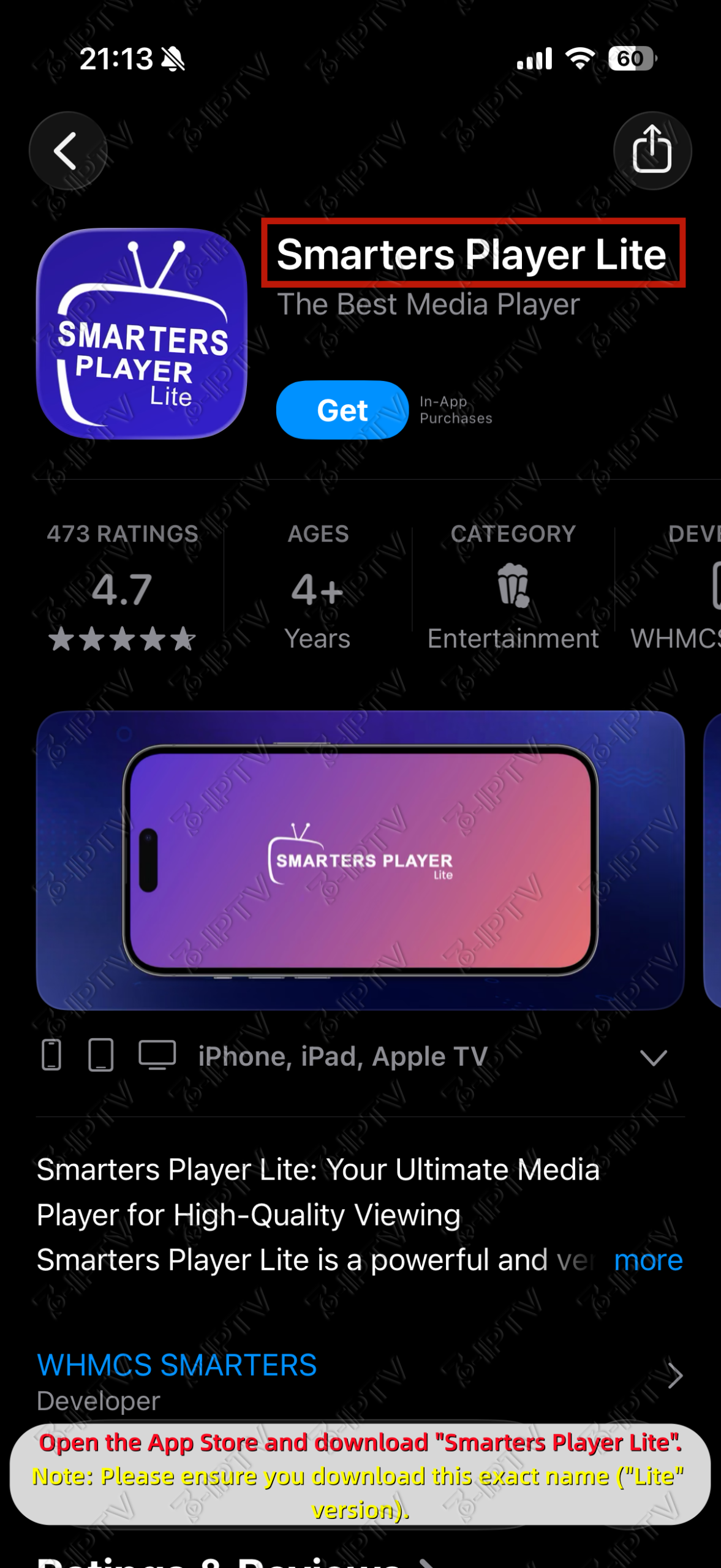
Go to the App Store and search for “Smarters Player Lite”.
02. Login
Open the app, select “Xtream Codes API”, and enter your login details.
PC & Mac Setup
01. Login
- For App: Select “Login with Xtream Codes API”.
- For Web Player: Simply enter your Username, Password, and URL on the login screen.
MAG & MAC Devices Setup
For MAG Box, Formuler, BuzzTV, Smart STB, STB Emu, and all devices using a MAC Address.
01. Enter MAC Address at Checkout
Find the MAC address (starts with 00:1A:79…) on the bottom of your box or in the device settings. When placing your order, simply enter this address into the “MAC Address” field on the checkout page.
02. Enter Portal URL on Your Device
Once your order is complete, check your email for your unique Portal URL. On your MAG Box, go to Settings > System Settings > Servers > Portals. In the “Portal 1 URL” field, type the URL we sent you.
03. Restart Portal
Save your settings and return to the main menu. Click “Reload Portal”. Your channel list will load automatically.